Part 4: The Manage Page
Once the job is submitted, the user wants to know how it's doing and what it found, without opening a terminal. That's what the Manage page is for. In Manage mode the user picks a run from the table, and the page shows its jobs, its results and what they can do with it.
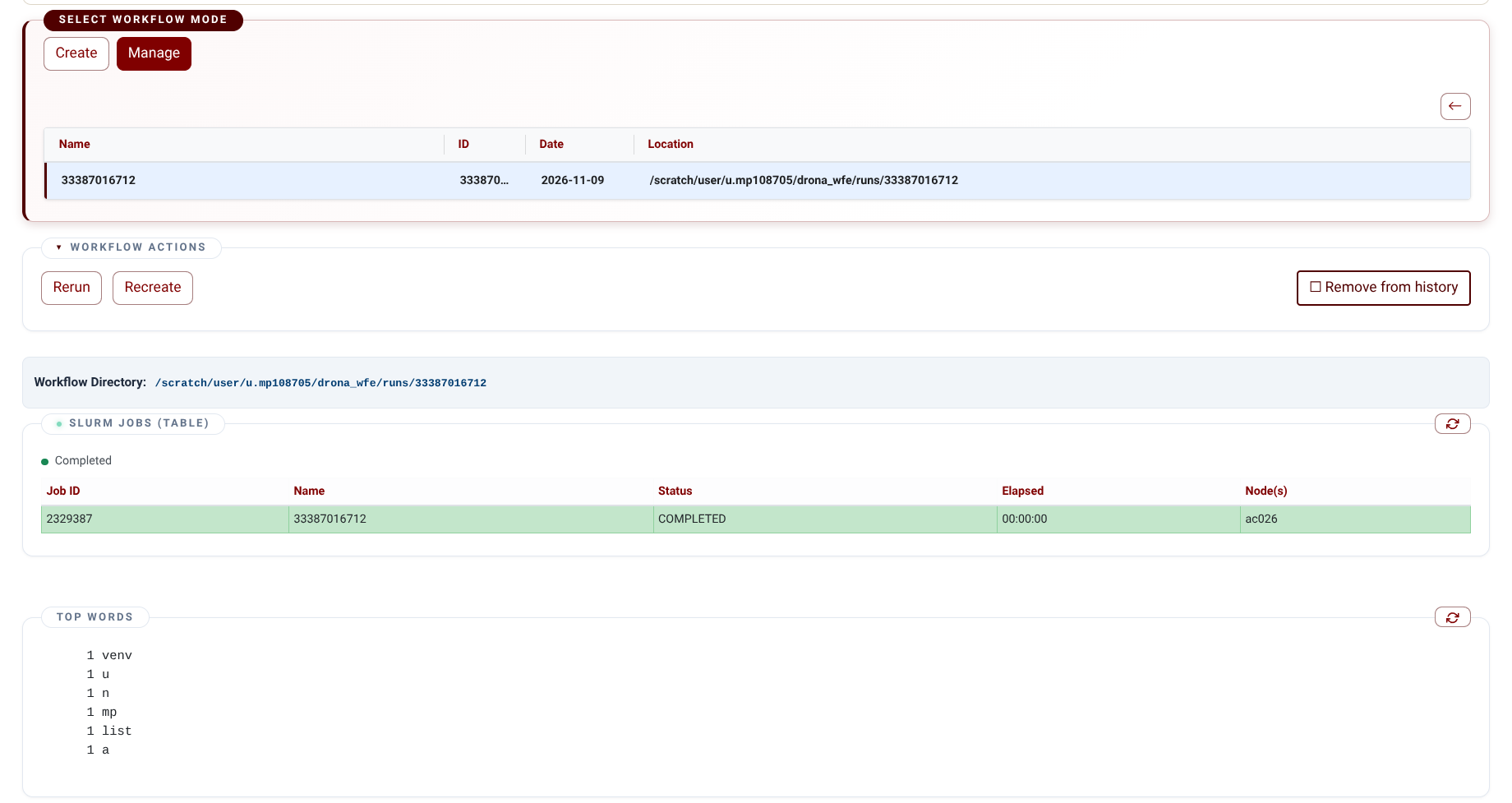
Users also reach this page by clicking a run under Recent Workflows on the environments page.
From top to bottom, the cards in the screenshot come from:
| Card | From |
|---|---|
| Select Workflow Mode and the table of runs | the runtime library, set up in schema.json (Part 1) |
| Workflow Actions | the runtime library |
| Workflow Directory | the runtime library |
| Slurm Jobs | the runtime library |
| Top Words | WordCount |
Most of the page comes from the Drona Runtime Library; only the Top Words card is WordCount's own. Here is the whole page, schemas/manage.schema.json:
{
  "hidden_jobs": {
    "$ref": "$DRONA_RUNTIME_DIR/forms/drona_info_jobs.json#/drona_hidden_jobs_check"
  },
  "hidden_status": {
    "$ref": "$DRONA_RUNTIME_DIR/forms/drona_info_status.json#/drona_hidden_selected_job_status_check"
  },
  "hidden_jobdir": {
    "$ref": "$DRONA_RUNTIME_DIR/forms/drona_info_jobdir.json#/drona_hidden_jobdir_path"
  },
  "workflowActions": {
    "$ref": "$DRONA_RUNTIME_DIR/forms/drona_manage_actions.json#/drona_workflowActions"
  },
  "workingDirectory": {
    "$ref": "$DRONA_RUNTIME_DIR/forms/drona_info_jobdir_view.json#/drona_workingDirectoryBar"
  },
  "slurm_jobs": {
    "$ref": "$DRONA_RUNTIME_DIR/forms/drona_slurm_jobs_table.json#/drona_slurmJobsTable"
  },
  "results": {
    "type": "staticText",
    "name": "word_count_results",
    "label": "",
    "isDynamic": true,
    "retriever": "retrievers/show_results.sh",
    "retrieverParams": {
      "JOB_DIR": "$drona_job_dir"
    },
    "refreshInterval": 30,
    "refreshWhile": "!drona_status.DONE",
    "showRefreshButton": true,
    "allowHtml": true,
    "condition": "!drona_job_dir.",
    "layout": {
      "preset": "card",
      "title": "Top Words",
      "dot": false
    }
  }
}
Looking Up the Selected Run
The first three elements are hidden: they don't appear on the page, but run in the background and hold a value the other elements use.
"hidden_jobs": {
  "$ref": "$DRONA_RUNTIME_DIR/forms/drona_info_jobs.json#/drona_hidden_jobs_check"
},
"hidden_status": {
  "$ref": "$DRONA_RUNTIME_DIR/forms/drona_info_status.json#/drona_hidden_selected_job_status_check"
},
"hidden_jobdir": {
  "$ref": "$DRONA_RUNTIME_DIR/forms/drona_info_jobdir.json#/drona_hidden_jobdir_path"
}
| Element | Value | How |
|---|---|---|
hidden_jobs | $drona_info_jobs: the run's Slurm job IDs | Looks them up in Drona's workflow database, where drona_wf_driver_sbatch recorded them in Part 3. Checked again every minute. |
hidden_status | $drona_status: PENDING, RUNNING or DONE | Asks Slurm about the run's job, and stops asking once it is DONE. |
hidden_jobdir | $drona_job_dir: the run's directory | Looks it up in the workflow database. |
Elements that get their value from a script like this are dynamic, and the script is called a retriever. The rest of the page builds on these three values.
Actions, Directory and Jobs
"workflowActions": {
  "$ref": "$DRONA_RUNTIME_DIR/forms/drona_manage_actions.json#/drona_workflowActions"
},
"workingDirectory": {
  "$ref": "$DRONA_RUNTIME_DIR/forms/drona_info_jobdir_view.json#/drona_workingDirectoryBar"
},
"slurm_jobs": {
  "$ref": "$DRONA_RUNTIME_DIR/forms/drona_slurm_jobs_table.json#/drona_slurmJobsTable"
}
These are the cards between the run table and the results, all from the runtime library:
- Workflow Actions (
workflowRerunRecreate): Rerun runs the workflow again under a new name and location; Recreate opens the Create form filled in with this run's values, to change and submit; Remove from history removes the run from Drona's list when the user clicks Generate and Run on this page. Its directory stays, unless the user also chooses Also delete files. The Manage driver from Part 3 carries this out. - Workflow Directory shows the run's directory.
- Slurm Jobs lists the run's jobs with their state, elapsed time and nodes, and refreshes every 10 seconds.
The shared files bring their own conditions: the actions appear once a run is selected, and the directory and jobs once the run's jobs are known.
The Results Card
This is WordCount's own card, which shows results.txt:
"results": {
  "type": "staticText",
  "name": "word_count_results",
  "label": "",
  "isDynamic": true,
  "retriever": "retrievers/show_results.sh",
  "retrieverParams": {
    "JOB_DIR": "$drona_job_dir"
  },
  "refreshInterval": 30,
  "refreshWhile": "!drona_status.DONE",
  "showRefreshButton": true,
  "allowHtml": true,
  "condition": "!drona_job_dir.",
  "layout": {
    "preset": "card",
    "title": "Top Words",
    "dot": false
  }
}
staticTextshows text rather than asking for input. WithisDynamic, the text comes from theretrieverscript, hereretrievers/show_results.shin the environment's directory.retrieverParamspasses values to the script as environment variables: the script receives the run's directory asJOB_DIR.refreshIntervalruns the script again every 30 seconds, andrefreshWhilestops that once the job isDONE, because the results won't change after that.showRefreshButtonlets the user refresh by hand.allowHtmlshows the script's output as HTML instead of plain text.condition!drona_job_dir.reads show this whendrona_job_diris not empty, so the card waits until the run's directory is known. See Conditionals.layoutdraws the card with its Top Words title.
The Retriever: retrievers/show_results.sh
#!/bin/bash
# JOB_DIR comes from retrieverParams in manage.schema.json
RESULTS="$JOB_DIR/results.txt"
if [ ! -f "$RESULTS" ]; then
echo "<p>No results yet. The job may still be waiting or running.</p>"
exit 0
fi
# Escape the text, because the card shows this output as HTML
echo "<pre>"
sed -e 's/&/\&/g' -e 's/</\</g' -e 's/>/\>/g' "$RESULTS"
echo "</pre>"
A retriever is an ordinary script: whatever it prints becomes the element's content.
- Until the job has written
results.txt, it prints a short message instead. - Because the card shows HTML, the script escapes
&,<and>before printing the results, so text from the input file can't break the page. Do this whenever a retriever prints data withallowHtmlon. <pre>keeps the columns of the results aligned.
A retriever can print anything, not only text: tables, links or charts. See Retriever Scripts and Live Charts.
Try It
- Submit a run in Create mode, then click Manage and select it in the table.
- The Slurm Jobs card shows the job. Once it has finished, Top Words shows the results.
- Try Recreate: the Create form opens with the run's values.
If a card stays empty, run its retriever yourself with the value it would get:
JOB_DIR=/path/to/your/run bash retrievers/show_results.sh
Administrators can also find retriever failures in logs/retriever_errors.
Next: Part 5: Share It.