Part 1: The Form
The form is what the user sees first. It asks the questions the workflow needs, and nothing about Slurm unless you want it to.
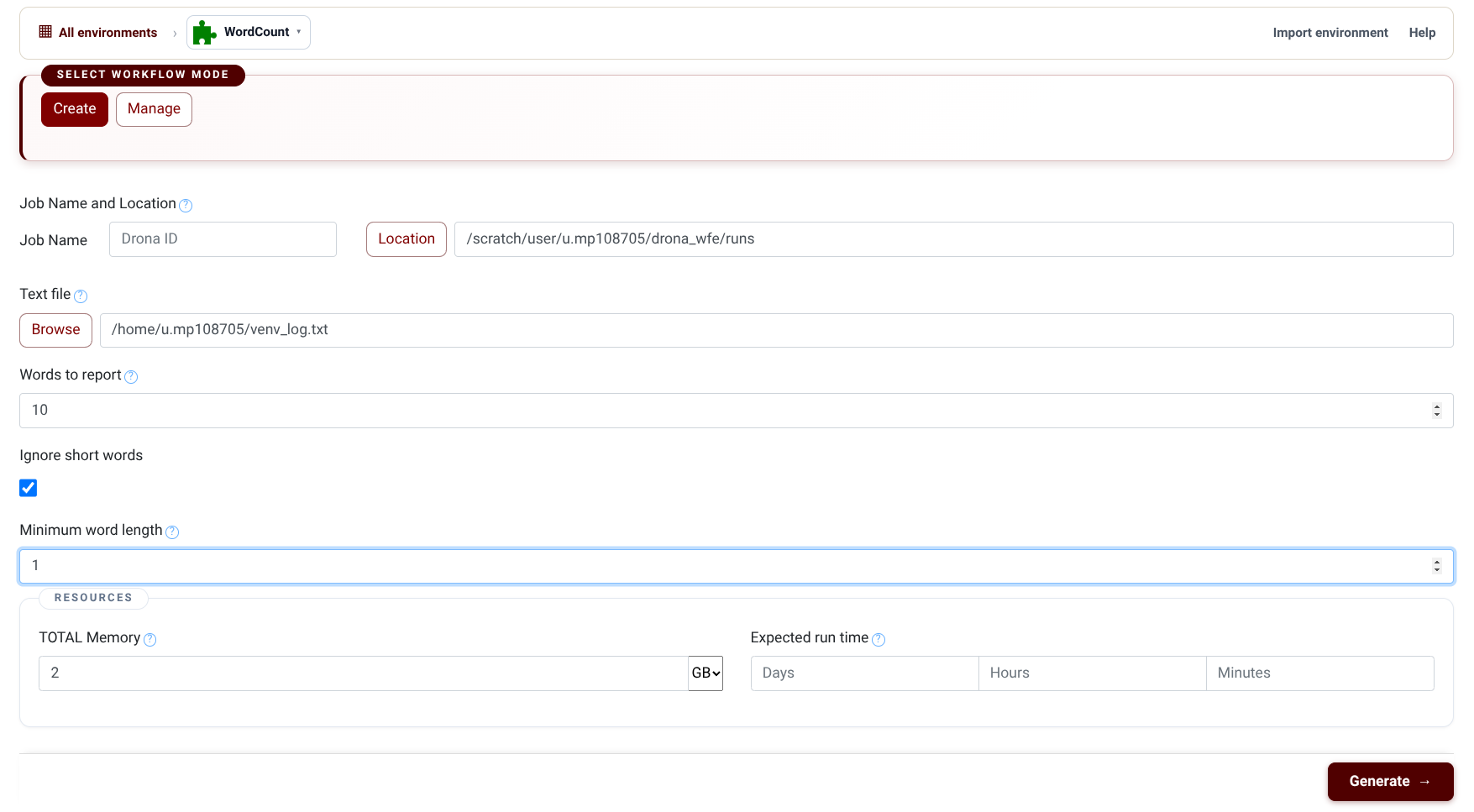
A form is described in JSON. Each top-level key is one element: a field, a piece of text, or a container that holds other elements. Drona draws the elements in the order they appear.
Create and Manage: schema.json
WordCount has two pages: Create, to start a new run, and Manage, to follow runs that were already submitted. The top-level schema.json only sets up that switch:
{
  "CreateManageContainer": {
    "type": "container",
    "elements": {
      "$ref": "$DRONA_RUNTIME_DIR/forms/drona_create_manage-table.json"
    }
  }
}
$ref inserts elements from another file instead of writing them here. $DRONA_RUNTIME_DIR is the location of the Drona Runtime Library, Drona's collection of ready-made parts, so this reuses its drona_create_manage-table.json, which adds:
- the Select Workflow Mode card with the Create and Manage buttons. The choice is available to the rest of the environment as
$drona_create_manage_mode, with the valuecreateormanage. - in Manage mode, a table of this environment's earlier runs to choose from.
- the page itself:
schemas/create.schema.jsonin Create mode andschemas/manage.schema.jsonin Manage mode, both loaded from your environment's directory.
So the questions for a new run live in schemas/create.schema.json. The rest of this page goes through it one element at a time.
Job Name and Location
"destination": {
  "$ref": "$DRONA_RUNTIME_DIR/forms/drona_job_destination.json#/drona_runDestinationFinal"
}
Every environment needs a name for the run and a directory to run it in, so this element comes from the runtime library too. It's a jobNameLocation element: a name field and a directory picker. The user can leave both empty; Drona then uses the run's ID as the name and a new directory under the default location.
The values reach the rest of the environment as $name and $location.
The Text File
"input_file": {
  "type": "picker",
  "name": "input_file",
  "label": "Text file",
  "localLabel": "Browse",
  "showFiles": "true",
  "help": "The text file to analyze."
}
This is WordCount's own question.
type:pickeropens a file browser on the cluster.name: the name the value goes by in the rest of the environment, here$input_file. Every field that holds a value needs one.labelis the text above the field, andlocalLabelthe text on the button.showFiles: the picker shows files as well as directories, so the user can pick a file.help: the text shown when the user hovers over the question mark next to the label.
Words to Report
"top_n": {
  "type": "number",
  "name": "top_n",
  "label": "Words to report",
  "value": 10,
  "min": 1,
  "help": "How many of the most common words to report."
}
A number field. value is the default the form starts with, and min the lowest number the field accepts.
Ignoring Short Words
Common short words such as "a" and "of" crowd the top of the list, so the user can leave them out. The length only matters when that option is on, so it is shown only then:
"filter_short": {
  "type": "checkbox",
  "name": "filter_short",
  "label": "Ignore short words",
  "value": "Yes"
},
"min_length": {
  "type": "number",
  "name": "min_length",
  "label": "Minimum word length",
  "value": 4,
  "min": 1,
  "condition": "filter_short.Yes",
  "help": "Words shorter than this are not counted."
}
- The checkbox sends its
value,Yes, when it's checked, and nothing when it isn't. conditiondecides whether an element is shown.filter_short.Yesreads show this whenfilter_shorthas the valueYes. A hidden field still keeps its value, which is why the code that usesmin_lengthchecksfilter_shortfirst (see Part 2).
Conditions can also combine fields with && and ||. See Conditionals.
Resources
The job needs memory and time. Rather than building those fields, WordCount takes two from the shared Slurm resources form:
"resources": {
  "type": "rowContainer",
  "label": "Resources",
  "layout": {
    "preset": "card",
    "title": "Resources",
    "dot": false
  },
  "elements": {
    "drona_memory": {
      "$ref": "$DRONA_RUNTIME_DIR/forms/drona_slurm_resources.json#/drona_slurmCollapse/elements/drona_ContainerAdditional/elements/drona_memory",
      "value": "2G"
    },
    "drona_walltime": {
      "$ref": "$DRONA_RUNTIME_DIR/forms/drona_slurm_resources.json#/drona_slurmCollapse/elements/drona_ContainerAdditional/elements/drona_Walltime"
    }
  }
}
rowContainerplaces its elements side by side.layoutwith thecardpreset draws the box with the Resources title.- Each
$refpoints into a shared file with a path after#:drona_slurm_resources.jsonhas a whole resources section, and this takes just its memory and run time fields. - Keys next to a
$refoverride the shared element."value": "2G"changes the default memory to 2 GB.
The shared fields bring their labels, help text and units with them. They also have fixed names, drona_memory and drona_walltime, which a shared part of the map reads in Part 2. If the user leaves the run time empty, Drona uses a default of two hours.
Try It
- Open WordCount. The form appears in Create mode.
- Check and uncheck Ignore short words: Minimum word length appears and disappears.
- Hover over a question mark to see the help text.
You can change the JSON and reload the page to see the effect. If the form doesn't load, check that the file is valid JSON:
python3 -m json.tool schemas/create.schema.json
All element types and their options are listed in Form Components.