Part 3: Submit the Workflow
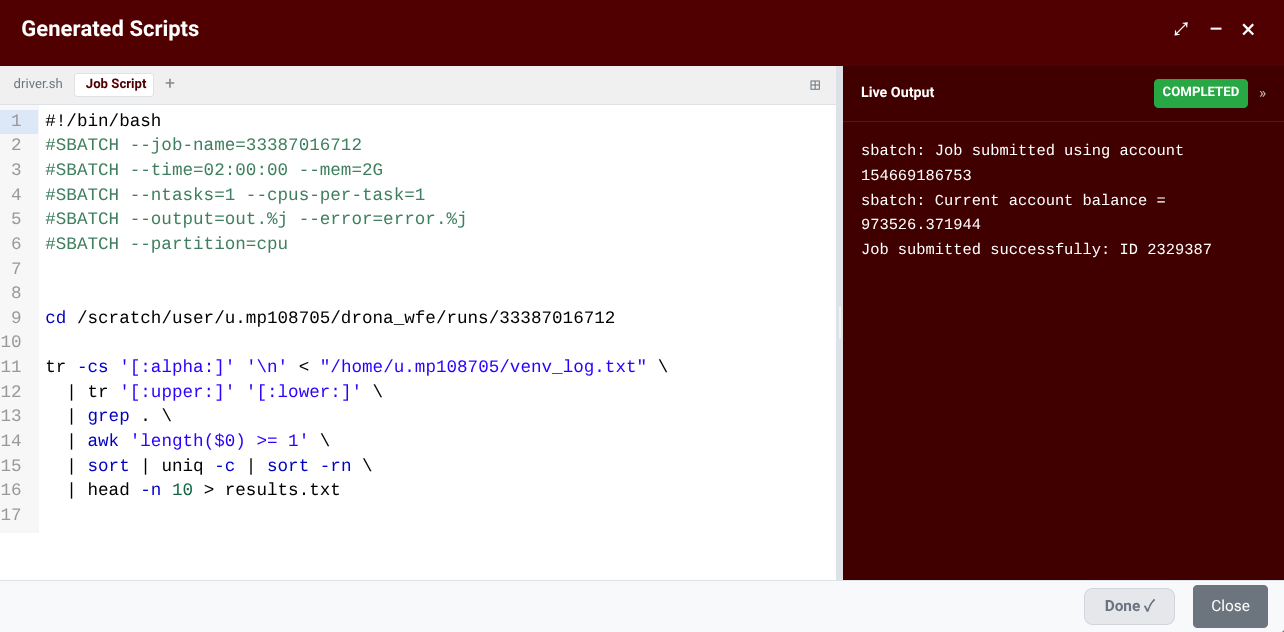
When the user clicks Run, Drona runs the environment's driver: a shell script that submits the job. Its output streams into the Live Output pane, as on the right of this screenshot:
One Driver, Two Modes: driver.sh
Drona always runs driver.sh. WordCount needs it to do something different in each mode: in Create mode it submits a new job, and in Manage mode it carries out the actions the user chose for an existing run.
There is more than one way to do that. An environment with only a Create mode can write its submit commands straight into driver.sh, and one with both modes could branch on the mode inside a single script. WordCount uses the approach we recommend for environments with both modes: each mode gets its own driver file, and driver.sh is just one placeholder that the map fills with the right one. That keeps each driver short and easy to read:
[DRIVER]
The map fills [DRIVER] by calling a function with the mode from Part 1:
"DRIVER": "!select_driver($drona_create_manage_mode)"
Choosing the Driver
def select_driver(mode):
    base = Path(__file__).resolve().parent
    if mode == "create":
        drona_add_additional_file("jobscripts/word-count.slurm", "Job Script")
        return (base / "drivers/driver-create.sh").read_text()
    if mode == "manage":
        return (base / "drivers/driver-manage.sh").read_text()
    drona_add_error("Choose Create or Manage.")
    return ""
baseis the environment's own directory, so the drivers are found wherever the environment is installed.- In Create mode,
drona_add_additional_fileadds the job script to the run. Drona fills its placeholders, writes it to the run's directory under its own name,word-count.slurm, and shows it in the Job Script tab. The function then returns the Create driver. - In Manage mode no job script is added, and the function returns the Manage driver.
- Without a mode, it shows an error and returns nothing.
Because the driver's text is the value of a placeholder, Drona fills the placeholders inside it too, such as [MANAGE] in the Manage driver below.
The Create Driver
#!/bin/bash
source /etc/profile

$DRONA_RUNTIME_DIR/schedulers/slurm/drona_wf_driver_sbatch word-count.slurm
source /etc/profilesets up the same environment as a login shell, so commands such assbatchandmoduleare available.- There is no
cd: Drona starts the driver in the run's directory, where the job script was written. Don't add one with the directory filled in: the driver is saved with the run as generated, and a rerun reuses it. drona_wf_driver_sbatchis Drona's shared submit command. It submits the job withsbatch, prints the job ID, and records the ID with the run, which is how the Manage page finds the run's jobs in Part 4. Given several job scripts, it submits them in order, each one waiting for the previous one to succeed.
The Manage Driver
#!/bin/bash
source /etc/profile

[MANAGE]
In Manage mode, Run carries out the workflow actions chosen on the Manage page, such as Remove from history. The commands come from a runtime library function:
"MANAGE": "!retrieve_workflow_actions($drona_create_manage_mode, $drona_delete_workflow, $drona_delete_files, $drona_create_manage_allworkflows, $drona_job_dir)"
retrieve_workflow_actions isn't in WordCount's utils.py: it is one of the helper functions of the Drona Runtime Library, which every environment's map can call. It returns the commands for the actions the user selected, or a command that just prints No action taken.
Try It
- In Create mode, pick a file and click Generate, then Run.
- The Live Output pane shows the
sbatchoutput andJob submitted successfully: ID …, and the status badge changes to Completed once the driver has finished. - When the job has run,
results.txtin the run's directory lists the top words, for example:
     12 drona
      9 workflow
      7 environment
If the submission fails, the error is in the Live Output pane. The job's own output and errors are in out.<job ID> and error.<job ID> in the run's directory.
Next: Part 4: The Manage Page.