User Workflows
User workflows are custom Drona Workflow Engine (DWE) workflows stored in your personal workspace. They provide complete isolation from system-wide workflows while following the same architecture, allowing you to create, customize, and experiment with workflows without requiring system-level permissions.
What are User Workflows?
User workflows are self-contained workflow definitions stored in your personal directory that follow the same structure as system workflows. Each user workflow represents a complete computational environment tailored to your specific research needs, enabling experimental development, custom modifications, and specialized computational frameworks.
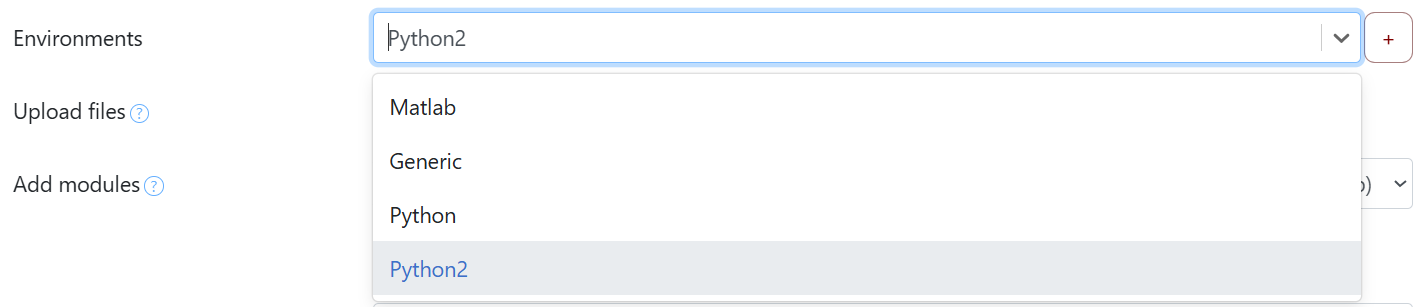
User workflows appear with blue highlighting in the workflow selection dropdown, making them easily distinguishable from system-provided workflows.
Workflow Storage
User workflows are stored under the environments/ subdirectory of your configured DWE directory. The DWE directory is set by drona_dir in your user configuration file:
~/.drona/config.json
For example, if your config.json contains:
{ "drona_dir": "/scratch/user/<username>/drona_wfe" }
Then your user workflows are stored at:
/scratch/user/<username>/drona_wfe/environments/
The environments/ subdirectory is created automatically the first time DWE loads if it does not already exist.
Workflow Structure
Any directory placed inside your environments/ directory is treated as a user workflow. The directory must contain the following core files to function correctly:
| File | Required | Description |
|---|---|---|
schema.json | Yes | Defines the form UI — field types, labels, conditions, and dynamic content |
map.json | Yes | Maps form field values to job template variables |
driver.sh | Yes | Shell script that submits the job(s) to the scheduler |
utils.py | Yes | Python functions callable from map.json via the !functionName() syntax |
template.txt | Yes | Slurm batch script template with [VARIABLE] placeholders |
additional_files.json | No | Declares extra files to include alongside the generated job |
See the Workflow Development Overview for a full description of each file and how they interact.
Adding User Workflows
There are two ways to add a user workflow to your personal workspace.
Option 1: Import from the Community Repository
DWE includes a built-in "Import Environments" modal that lets you browse and import workflows from the community GitHub repository without any manual file management.
To import a workflow:
- Click the Import Environments button in the workflow selection interface.
- Browse the available workflows. You can filter by name, category, or organization.
- Click Add next to any workflow you want to import.
- The workflow is copied into your
environments/directory and immediately appears in the workflow dropdown with blue highlighting.
Workflows are imported using a git sparse-checkout, so only the requested workflow directory is downloaded — not the entire repository.
Option 2: Create a Workflow Manually
To create a custom workflow from scratch:
- Create a new directory inside your
environments/path:/scratch/user/<username>/drona_wfe/environments/<your-workflow-name>/ - Add the required files (
schema.json,map.json,driver.sh,utils.py, and at least one template file) to that directory. - Reload DWE — the new workflow will appear in the dropdown with blue highlighting.
Refer to the schema, map, driver, and utils documentation for detailed guidance on authoring each file.
Texas A&M University High Performance Research Computing