User Environments
User environments are Drona Environments stored in your personal workspace. They follow the same structure as system environments, so you can create, customize, and experiment with them without system-level permissions and without affecting other users.
In the app they are marked with a User tag, and only they have a Remove button.
Where They Are Stored
User environments are stored under the environments/ subdirectory of your Drona directory. The Drona directory is set by drona_dir in your user configuration file:
~/.drona/config.json
For example, if your config.json contains:
{ "drona_dir": "/path/to/scratch/<username>/drona_wfe" }
Then your user environments are stored at:
/path/to/scratch/<username>/drona_wfe/environments/
The environments/ subdirectory is created automatically the first time Drona loads if it does not already exist.
Environment Structure
Any directory placed inside your environments/ directory is treated as a user environment. See Files in a Drona Environment for what it contains.
Adding User Environments
There are two ways to add a user environment to your personal workspace.
Option 1: Import from the Environment Repository
Your site may offer more environments in an environment repository. The import window lets you browse and add them without any manual file management. To open it, click Import environment in the app bar, or the Import an environment card on the environments page. If neither appears, your site has turned import off.
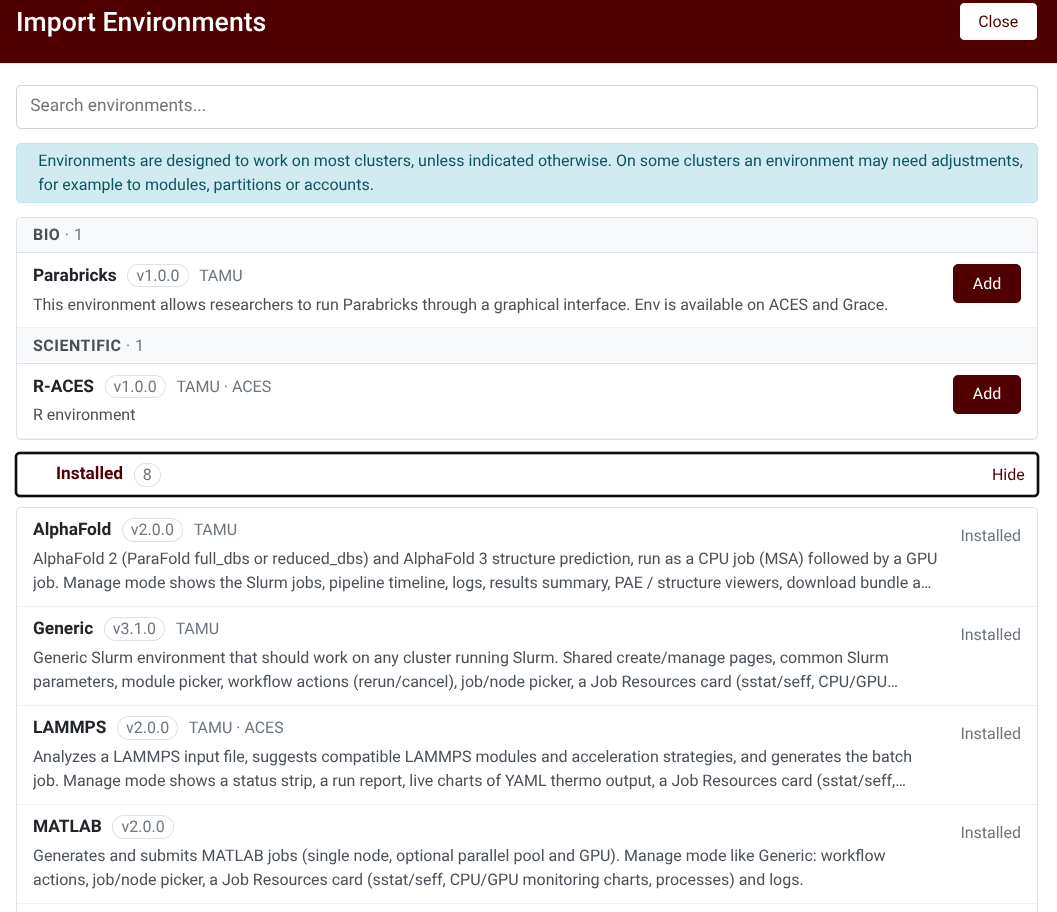
- Browse or search the available environments, which are grouped by category.
- Click Add next to the environment you want.
- The environment is copied into your
environments/directory and appears on the environments page with a User tag.
Environments are imported using a git sparse-checkout, so only the requested environment directory is downloaded — not the entire repository.
To remove an imported environment later, click Remove on its card on the environments page.
Option 2: Create an Environment Manually
- Create a new directory inside your
environments/path:/path/to/scratch/<username>/drona_wfe/environments/<your-environment-name>/ - Add at least
schema.json,map.jsonanddriver.sh. - Reload Drona. The new environment appears with a User tag.
Refer to the schema, map, driver, and utils documentation for guidance on writing each file.
Sharing Your Environment
If you built an environment that other researchers could use, you can contribute it to Drona's environment repository, so it appears in the import window for everyone. See Contributing to the Drona Environment Repository.