OSD - .Net Framework 3.5
The base install of Windows does not come with .Net Framework 3.5 so this package is used during Task Sequences to deploy .Net Framework 3.5 to the applied Operating System. These Frameworks are version specific, while older versions will install fine, it will most likely cause unneeded or unwanted Windows Updates.
Using it in Task Sequences
In the Task Sequence editor,
-
Click
Add > General > Run PowerShell Script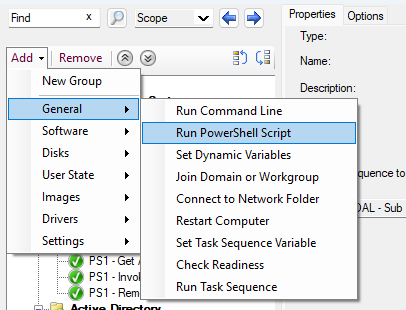
-
In the Properties Tab
- Name:
PS1 - Install .Net Framework 3.5 - Package:
OSD - .net Framework 3.5 - Parameters:
-Version [Windows Version] -WinPE
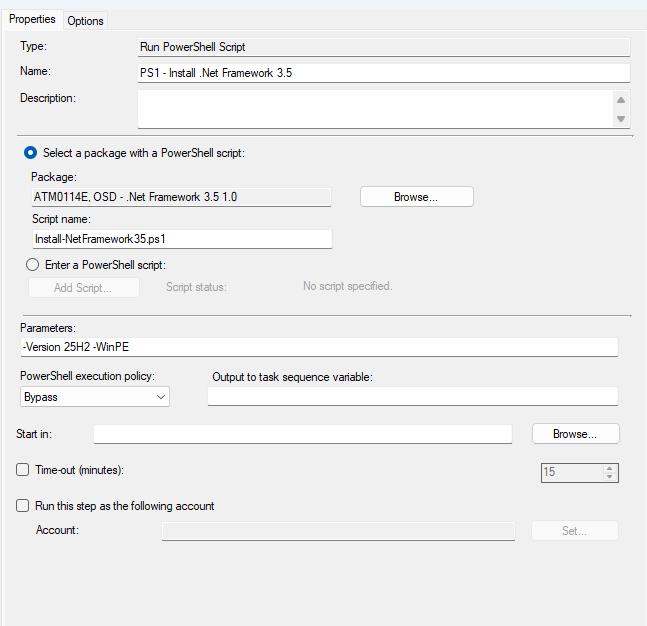
- Name:
Adding Support for New Windows Releases
Dependencies
- Windows Enterprise ISO
- Permissions to edit Task Sequences and Packages
Step 1 - Get .Net Framework Package
- Make a new folder named the version of windows.
- Example: 25H2
- Mount the Windows Enterprise ISO
- In the mounted ISO, go to sources > sxs
- Copy the Cab file that contains netfx3 to the created folder
- Unmount the ISO
Step 2 - Update package
Package Name: OSD - .Net Framework 3.5
Package Path: \\auth.tamu.edu\TAMU\ConfigMGR\SourceContent\SoftwareDistribution\OAL\OSD\Packages\.Net Framework 3.5
- Copy the Version folder into the Source folder in the package
- In MECM, right click and run
Update Distribution Points - Let is complete before continuing to Step 3
Step 3 - Update Task Sequence
I would recommend testing your deployment first in Dev Sub Task before deploying it to the Production Sub Task
- In the Sub Task, select the
PS1 - Install .Net Framework 3.5step - Update the current Version value in the Parameters to the new version